Zoom VDI Plugin: Virtual Desktop Environments
Virtual Desktop Infrastructure (VDI) has become essential for organizations that want to deliver secure, centralized desktops to employees working remotely or in hybrid environments. At the same time, video conferencing tools like Zoom are critical for communication and collaboration. However, running video meetings inside a virtual desktop can create performance issues if not optimized correctly.
That’s where the Zoom VDI Plugin comes in.
This comprehensive guide explains what the Zoom VDI Plugin is, why it’s needed, how it works, installation methods, supported platforms, benefits, and best practices for achieving high-quality video conferencing in virtual desktop environments.
What Is the Zoom VDI Plugin?
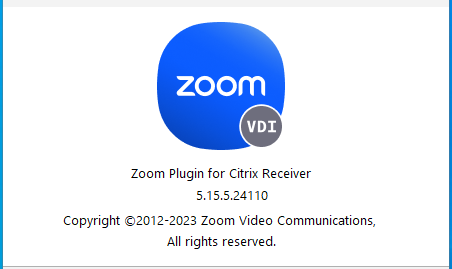
The Zoom VDI Plugin is a special software component designed to optimize Zoom performance in Virtual Desktop Infrastructure environments such as Citrix, VMware Horizon, and Microsoft Azure Virtual Desktop.
In a traditional VDI setup, applications run inside a remote virtual machine in a data center. Without optimization, audio and video traffic must travel from the user’s device to the data center and back again. This can cause:
High latency
Poor video quality
Audio delays
Increased server load
The Zoom VDI Plugin solves this by offloading media processing (audio, video, and screen rendering) from the virtual desktop to the user’s local device.
Why Standard Zoom Doesn’t Work Well in VDI
Zoom was originally designed for local desktop environments. When used inside a VDI session without optimization:
Video is processed inside the data center
The compressed video stream is sent to the user
The user’s device decodes and displays it
This creates a “double hop” for media traffic, increasing bandwidth usage and reducing performance. Servers in the data center also experience higher CPU usage because they must process multiple video streams.
The Zoom VDI Plugin eliminates this inefficiency.
How the Zoom VDI Plugin Works
The Zoom VDI solution includes two main components:
1. Zoom VDI Client (Installed in the Virtual Desktop)
This version of Zoom runs inside the virtual machine. It looks like the regular Zoom client but is designed to communicate with the VDI plugin.
2. Zoom VDI Plugin (Installed on the Local Endpoint)
This plugin runs on the user’s physical device (laptop, desktop, or thin client). It handles:
Video encoding and decoding
Audio processing
Webcam and microphone access
Speaker output
Communication Flow
When a user joins a Zoom meeting inside a virtual desktop:
The Zoom VDI Client detects the local plugin
Media processing is redirected to the endpoint device
Only control signals pass through the virtual desktop session
Audio and video travel directly between the endpoint and Zoom’s cloud
This results in better performance and reduced load on the data center.
Supported VDI Platforms
Zoom provides VDI optimization for several major virtual desktop platforms.
Citrix Virtual Apps and Desktops
Zoom supports Citrix HDX technology for media redirection, providing smooth video and audio performance.
VMware Horizon
Zoom integrates with VMware Horizon’s media optimization features to improve user experience.
Azure Virtual Desktop (AVD)
Zoom VDI Plugin also supports Microsoft’s cloud-hosted VDI solution, allowing efficient media processing on endpoint devices.
Key Features of the Zoom VDI Plugin
Optimized Audio and Video
Media processing happens locally, resulting in:
Clearer video
Reduced lag
Better audio synchronization
Lower Data Center Load
Offloading media reduces CPU and bandwidth usage on VDI servers.
Support for USB Devices
Webcams, headsets, and microphones connected to the local device work smoothly inside virtual sessions.
High-Definition Video Support
The plugin supports HD video quality depending on network and device performance.
Seamless User Experience
Users can join meetings normally without needing to understand the technical setup behind the scenes.
System Requirements
Endpoint Device Requirements
Supported operating system (Windows, macOS, Linux, or thin client OS)
Compatible Zoom VDI Plugin version
Webcam, microphone, and speakers
Stable internet connection
Virtual Desktop Requirements
Supported VDI platform (Citrix, VMware, or AVD)
Zoom VDI Client installed in the virtual machine
Network access to Zoom cloud services
Matching plugin and client versions is important for compatibility.
Installation Overview
Step 1: Install Zoom VDI Client in the Virtual Desktop
IT administrators install the Zoom VDI Client inside the base image used for virtual desktops.
Step 2: Install Zoom VDI Plugin on Endpoint Devices
The plugin must be installed on each user’s local device. Organizations often deploy it using endpoint management tools.
Step 3: Verify Plugin Detection
When a user launches Zoom inside the VDI session, the client automatically checks for the plugin. If detected, media optimization is enabled.
Step 4: Test Audio and Video
Users should test their camera and microphone in Zoom settings to confirm everything works properly.
Benefits of Using Zoom VDI Plugin
Better Performance
Users experience smoother video calls with less lag and improved audio clarity.
Reduced Bandwidth Usage
Media traffic flows directly between the endpoint and Zoom’s cloud, not through the data center.
Lower Infrastructure Costs
Offloading processing reduces the need for expensive server resources.
Improved Scalability
Organizations can support more concurrent Zoom users in VDI environments without performance degradation.
Enhanced User Satisfaction
Employees enjoy a meeting experience closer to using Zoom on a local computer.
Security Considerations
Security remains a top priority in VDI environments.
Encrypted Communication
Zoom uses encrypted connections for audio, video, and data traffic.
Controlled Access
IT administrators manage who can access virtual desktops and install plugins.
Endpoint Security
Since media processing occurs on endpoint devices, organizations should ensure those devices meet security policies.
Common Issues and Troubleshooting
Plugin Not Detected
If Zoom does not detect the plugin:
Ensure versions of the VDI client and plugin match
Restart the virtual desktop session
Reinstall the plugin
Poor Audio or Video Quality
Possible causes include:
Weak internet connection
Outdated drivers
Insufficient endpoint hardware
USB Device Not Working
Check local device permissions and VDI platform USB redirection settings.
Best Practices for Deployment
Keep Versions Updated
Regularly update both the Zoom VDI Client and Plugin to ensure compatibility and performance improvements.
Standardize Endpoint Devices
Using approved headsets and webcams reduces support issues.
Monitor Network Performance
Good network quality is essential for smooth video conferencing.
Educate Users
Provide simple guides so employees know how to test devices and report issues.
Zoom VDI Plugin vs Non-Optimized Zoom in VDI
| Feature | Without VDI Plugin | With Zoom VDI Plugin |
|---|---|---|
| Media Processing | Data center | Local endpoint |
| Video Quality | Often lower | Higher and smoother |
| Server Load | High | Reduced |
| Bandwidth Usage | Higher | Optimized |
| User Experience | Lag possible | More natural |
The plugin dramatically improves the virtual meeting experience.
The Future of Video Conferencing in VDI
As remote work continues to grow, optimized media solutions like the Zoom VDI Plugin will become even more important. Future improvements may include:
AI-based noise reduction
Better support for 4K video
Enhanced virtual background performance
Deeper integration with VDI platforms
Organizations that rely on virtual desktops must ensure communication tools are optimized for performance and user comfort.
Conclusion
The Zoom VDI Plugin is an essential tool for organizations using virtual desktop environments. It ensures high-quality video conferencing by moving media processing from the data center to the user’s local device. This reduces server load, improves audio and video performance, and provides a smoother meeting experience.
By properly installing and maintaining the Zoom VDI Client and Plugin, businesses can deliver reliable communication tools to remote and hybrid workers without compromising performance or security. As VDI adoption continues to expand, optimized solutions like the Zoom VDI Plugin will remain critical for modern digital workplaces.